
Hood Warfare Android Install Checks: Verifying the Beta APK Source and Unlock Terms
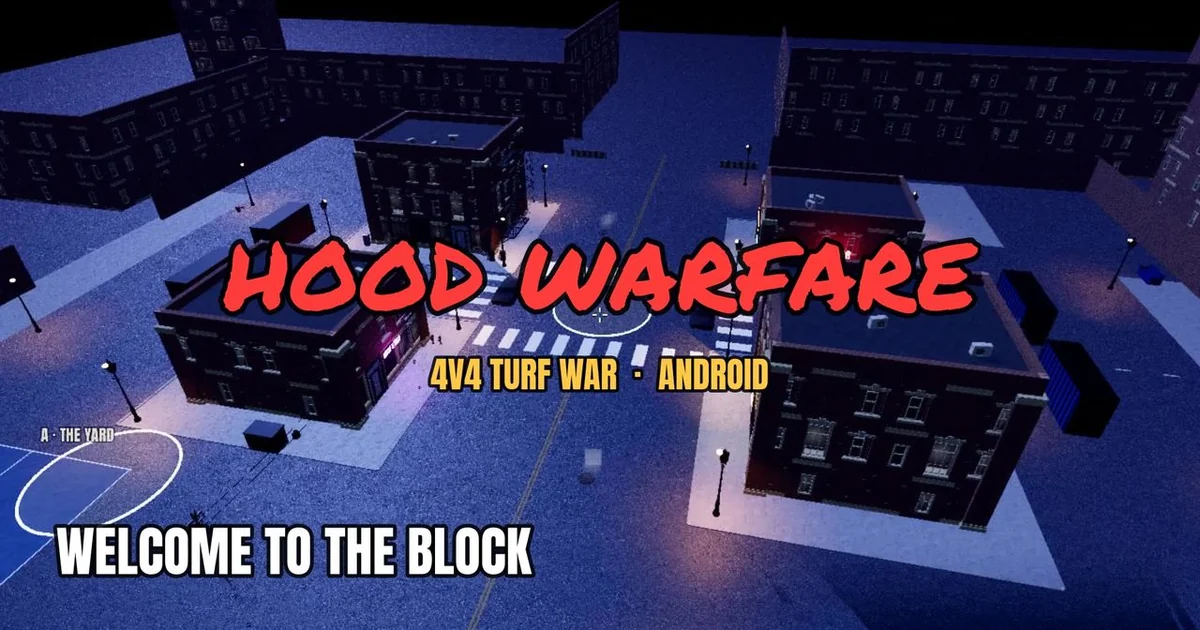
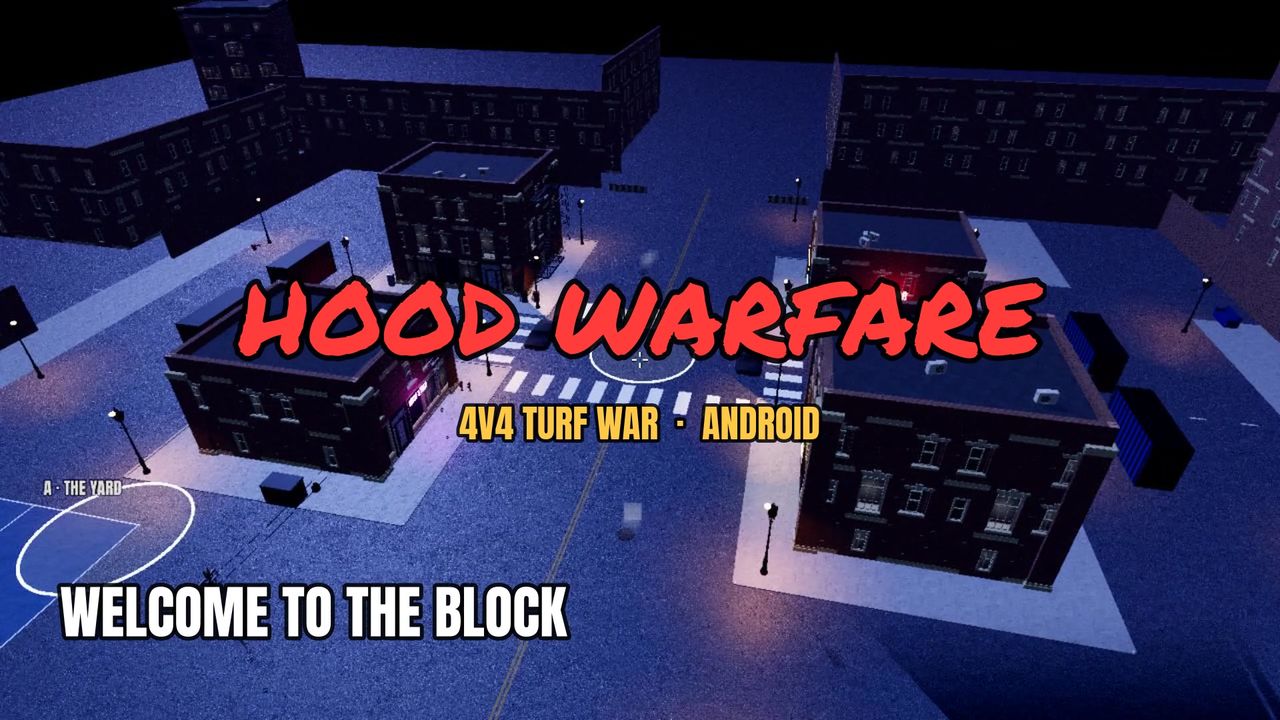
This guide is published by TechBlast UK as coverage within our own publishing network. Hood Warfare is one of the brands in that network, so please read this as owned-network guidance rather than an independent third-party endorsement. Our aim is narrower than a review: it explains how an Android player can check where a Hood Warfare APK comes from, whether the phone is likely to run it, and what the online-play unlock covers before spending money or granting install permissions. Everything here reflects the public information on the official site, hoodwarfare.net, as checked on 2026-10-29. Terms and build details can change, so the official download page is always the final reference.
Start with the source, not the file
Hood Warfare is distributed as an APK through the official website, hoodwarfare.net. That single fact should shape the whole installation routine. Android allows APK files to be sideloaded from many places, and a file with a plausible name can be found on almost any download site. Before you tap anything, type the address yourself or open a bookmark you saved from the official site, rather than following a link from a forum post, a social comment or an unfamiliar video description.
Once you are on the official page, look for the download control that matches the public build information. As checked on 2026-10-29, the page lists v0.3.0-beta, build 74f1651, Android 10 or newer on 64-bit devices, and an APK of roughly 290 MB. Write those details down or take a screenshot so you can compare them with the file you actually download. If the file size or version label does not match what the official page shows, stop and do not install it. Mismatches are a simple, practical reason to pause.
It is also worth separating a build label from proof of authenticity. A build identifier such as 74f1651 tells you which public build the page describes. It is not the APK's cryptographic checksum, and it does not on its own confirm that a file is untampered. If the official page publishes a checksum for the file, compare it using a hash tool on your computer or a verified app on your phone. If no checksum is published, rely on the source and the size and version match rather than claiming more verification than you have.
Confirm the device requirement before downloading
The public requirement is Android 10 or newer on a 64-bit device. Check two things in your phone's settings: the Android version under About phone or the equivalent software information screen, and whether the processor is a 64-bit architecture. Most current Android phones meet both conditions, but older budget devices and some tablets may not. Checking first saves you a 290 MB download that will simply refuse to launch.
Storage matters too. An APK of about 290 MB will not be the only space it needs after installation, since the game will create its own data files and may update over time. Leave comfortable free space, not the bare minimum. A useful routine is to clear some room, then confirm the free space figure before you begin.
Be honest about performance expectations. The official site describes fast 4v4 matches with bots filling empty slots, but it does not publish benchmark results, frame-rate figures or independent performance tests for any device. Treat the requirement list as the minimum the publisher states, not a promise that every eligible phone will play smoothly. If your device is near the bottom of the requirements, try the game's early menus and a short match before committing to long sessions.
Understand the one-time unlock before you pay
The official download page, as checked on 2026-10-29, lists a $1 one-time unlock for online play for new players, with no subscription. It also states that players who joined during the beta keep free access. These are the terms as presented on that date, and they can change, so compare them with the live page before paying. Do not rely on a screenshot or a summary from elsewhere, including this article, as the final word on price.
A useful question to ask is simply what the unlock covers. The public information distinguishes online play from cosmetic extras such as weapon skins and outfits, which are presentation only and never change stats. Read the unlock description on the official page to see whether anything else is included or excluded. If the wording is unclear about a particular item, assume the item is not included until the official page says so.
Also check whether your status depends on when you joined. The page says free access is kept for beta players, which means a new player and an earlier player may see different terms. Confirm which group you fall into by checking the account or access information shown in the game and on the site, rather than assuming.
A pre-install checklist and what to avoid assuming
Before installing, work through this short sequence in order. First, confirm you are on hoodwarfare.net and not a copy. Second, check that your phone runs Android 10 or newer on a 64-bit device. Third, confirm enough free storage for a roughly 290 MB file plus room for data. Fourth, match the version label v0.3.0-beta and build 74f1651 against the official page. Fifth, if a checksum is published, verify it. Sixth, read the current unlock terms, including what they cover and whether your access is already free. Only then allow installation from the source you used.
Several things should not be assumed. The site lists Turf War as available, but it describes Free-for-All, Team Deathmatch and additional maps as coming in a future update. Those modes are not presented as released, so do not expect them from the current file. A newer internal API or test build is not proof of a new public APK release, so ignore version numbers you see in unofficial sources. The site also does not publish player counts, independent reviews or launch-success claims, so any such statement you encounter should be treated as unverified.
Finally, remember that sideloading any APK means granting your phone an installation permission you would not normally give. Turn that permission off for the browser or file manager once the install finishes. This is general good practice for any app obtained outside a store, and it keeps your phone's other software safer.